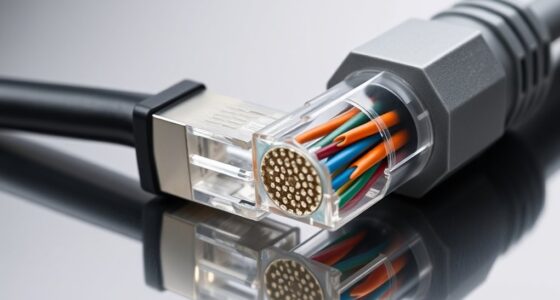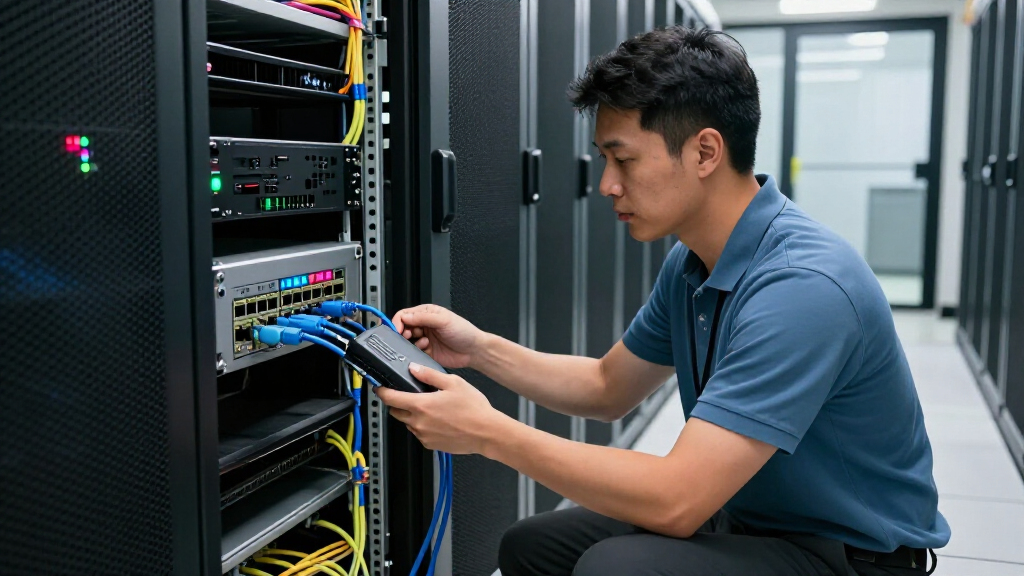

This guide helps you select a compatible Ethernet cable and any adapter your device needs, connect it to a router or network port, and check that it can reach the network. It is for beginners connecting computers, game consoles, smart TVs, docks, or other Ethernet-capable devices. Allow about 15-30 minutes, including time to check the connection and resolve common setup issues.

Get business pricing on networking and server gear
- Business-only prices and quantity discounts
- Tax-exempt purchasing
- Multiple users, one account, clear invoices

BENFEI USB-A/USB-C to Gigabit Ethernet Adapter
- ✔ Connection: USB-A/USB-C to RJ45 Ethernet
- ✔ Maximum Ethernet speed: 1 Gbps
- ✔ USB bus speed: 5 Gbps

Jadaol Cat 6 Ethernet Cable, 5 ft, 5-Pack, Black
- ✔ Cable category: Cat 6
- ✔ Length and quantity: Five cables, 5 feet each
- ✔ Connectors: RJ45 male-to-male

EZYUMM 3-Pack RJ45 Ethernet Couplers, Female-to-Female
- ✔ Connector: RJ45 female-to-female
- ✔ Pack quantity: 3
- ✔ Compatible cable types: Cat 7, Cat 6, Cat 5e, Cat 5
Difficulty: Beginner | Time: 15-30 minutes
What You’ll Need
Tools & Materials:
- Ethernet cable with RJ45 connectors, also called 8P8C connectors
- Device with an Ethernet port, or a compatible USB-to-Ethernet adapter
- Available LAN port on a router, switch, wall jack, or dock
- Internet-connected router or network with access you are allowed to use
Knowledge:
- Basic ability to identify ports and connect cables
- Access to the device’s network settings
- Permission to connect to the router or organization network
Check the device and network port before buying anything. Most home wired networks use Ethernet with RJ45 connectors. A USB-C or USB-A adapter must match an available port on your device; check the device maker’s specifications for compatibility, especially with tablets, phones, and managed computers. For a wall jack, confirm that it is connected to a live router or switch port: a wall jack alone may not provide a network connection.
Use a cable long enough to reach without pulling tight, but do not route it where doors, chair wheels, or foot traffic can crush or trip over it. Do not unplug cables from unfamiliar business or shared equipment.
BENFEI USB-A/USB-C to Gigabit Ethernet Adapter
When a computer lacks an RJ45 jack, replacing cables or joining them will not solve the actual problem. The BENFEI adapter adds a Gigabit Ethernet port through USB-A or USB-C, making it the most broadly useful pick in this group for adding wired access to a compatible laptop, tablet, or other listed device. It is USB-powered, so we do not need a separate power supply, and driver-free setup on supported systems keeps installation straightforward.Compared with the Jadaol cables, BENFEI supplies the missing network interface rather than the Ethernet lead itself. We still need a cable, and the listing calls for Cat 6 or newer to reach 1 Gbps. Its stated Ethernet ceiling is also lower than Jadaol’s advertised 10 Gbps cable rate, although that difference only matters when the rest of our equipment and connection can use the higher rate. Link and activity LEDs help us see connection status, while Wake-on-LAN may suit supported setups.Compatibility deserves a check before buying: Windows, macOS, Linux, Android, and Chrome OS are listed, but Windows RT and Nintendo Switch are not supported. USB 2.0 and 1.1 compatibility can help with older ports, but a slower USB connection may constrain performance. Choose this over a coupler if the missing piece is a port; skip it if our device already has Ethernet and we simply need a longer run.
Pros:
- Adds a wired RJ45 connection to compatible USB-A and USB-C devices.
- Supports Ethernet speeds up to 1 Gbps when the full setup allows it.
- USB-powered, compact, and driver-free on supported systems.
- Includes link and activity LEDs and Wake-on-LAN support.
Cons:
- Does not support Windows RT or Nintendo Switch.
- A Cat 6 or newer cable is required for the stated 1 Gbps performance.
- USB 2.0 or 1.1 ports may limit the performance available.
Best for: People adding wired Ethernet to a compatible USB-A or USB-C computer or tablet that lacks an RJ45 port.
Not ideal for: Nintendo Switch or Windows RT users, and buyers who already have an Ethernet port and only need a cable or cable extension.
Bottom line: We rank BENFEI first because it solves the distinct and common problem of adding Ethernet to a compatible device, provided we supply the right cable.
“We rank BENFEI first because it solves the distinct and common problem of adding Ethernet to a compatible device, provided we supply the right cable.”
Jadaol Cat 6 Ethernet Cable, 5 ft, 5-Pack, Black
For a home office, entertainment setup, or small network with several nearby devices, the Jadaol five-pack provides more practical coverage than a single adapter or one extension joint. Each round cable measures five feet and has male RJ45 connectors at both ends, so the pack is ready to connect compatible routers, computers, consoles, and other networking equipment. Pure copper 24 AWG conductors and a Cat 6 designation make these a sensible option for routine wired links.The listing states support for data rates up to 10 Gbps and a 550 MHz frequency, but we should treat those as cable specifications rather than a promise that every connection will run at that speed. The connected devices, network equipment, cable run, and network conditions must also support the target rate. That is a different proposition from the BENFEI adapter, whose Ethernet maximum is 1 Gbps; if we need a USB network port, a cable pack cannot provide one. Conversely, if the port is already there, this pack gives us complete cables while EZYUMM’s couplers require separate leads.Its waterproof and UV-resistant jacket is described for indoor and above-ground outdoor use, a useful distinction for installations that may encounter exposure, but the supplied details do not position it as a buried cable. The main constraint is length: five feet suits short connections, not a long room-to-room route. Choose this when we need multiple short leads; look elsewhere when the job needs one longer cable or a new network port.
Pros:
- Includes five separate five-foot Cat 6 cables with RJ45 male-to-male ends.
- Pure copper 24 AWG conductors and a stated maximum data rate of 10 Gbps.
- Waterproof and UV-resistant jacket is described for indoor and above-ground outdoor use.
- Compatible with a broad range of RJ45 networking devices.
Cons:
- Five-foot lengths are limiting for long or distant connections.
- Achievable network speed depends on connected equipment and network conditions.
- Provides cables only; it cannot add an Ethernet port to a device.
Best for: Households and small offices wiring several nearby RJ45 devices or keeping short spare Ethernet cables on hand.
Not ideal for: Buyers who need a single long cable, an Ethernet port added to a USB-only device, or a cable explicitly intended for buried installation.
Bottom line: We choose Jadaol when several short, complete Ethernet leads are more useful than an adapter or a way to join existing cables.
“We choose Jadaol when several short, complete Ethernet leads are more useful than an adapter or a way to join existing cables.”
EZYUMM 3-Pack RJ45 Ethernet Couplers, Female-to-Female
The EZYUMM couplers suit a narrow but useful situation: we have two Ethernet cables and need to connect them into one longer run. Each unit is a female-to-female RJ45 coupler, so installation is a simple plug-in connection with no driver or tool. A three-pack gives us spares or lets us make several joins, and compatibility covers Cat 5, Cat 5e, Cat 6, and Cat 7 cables.This is not a substitute for Jadaol’s five complete leads. The couplers only join cables we already own, so they make sense when the cable ends fall short but are less useful when we need to wire devices from scratch. They also do not add an Ethernet port like the BENFEI adapter. Their stated maximum is 1 Gbps with a maximum transmission distance of 328 feet; buyers planning a faster link or a longer total run should choose an approach suited to that requirement and check the capabilities of every network component.Because this product’s purpose is so specific, it ranks third overall despite being the most direct fix for a cable-length mismatch. A coupler adds a connection point and cannot improve the cable or network performance. It is best treated as a convenient joining accessory for ordinary home or office runs, not as a way to upgrade a network. If we do not already have two suitable cables, a complete cable pack is the more useful starting point.
Pros:
- Three compact female-to-female RJ45 couplers in the pack.
- Joins compatible Cat 5, Cat 5e, Cat 6, and Cat 7 cables.
- Plug-and-play setup requires no drivers or tools.
- Useful for extending an existing cable arrangement without replacing both leads.
Cons:
- Requires two separate Ethernet cables for each joined connection.
- Stated maximum data rate is 1 Gbps.
- Maximum stated transmission distance is 328 feet.
Best for: People with two existing RJ45 Ethernet cables who need to join them for a modest home or office extension.
Not ideal for: Buyers who need Ethernet cables included, want to add a network port, or need a stated connection beyond 1 Gbps or 328 feet.
Bottom line: We recommend EZYUMM only when joining cables already on hand is the specific need; it is less complete than buying cables and cannot add a device port.
“We recommend EZYUMM only when joining cables already on hand is the specific need; it is less complete than buying cables and cannot add a device port.”
As an Amazon Associate we earn from qualifying purchases.
Before You Start
Find the Ethernet port on the device and the port that will provide network access. Router ports labeled LAN are intended for local devices; the port labeled WAN or Internet usually connects the router to the modem and is not the port to use for a computer. If the device has no Ethernet port, check which USB connection it has and select an adapter that supports it. A cable does not normally need a particular speed rating for basic compatibility, but the connection cannot exceed the capabilities of the device, adapter, router, and cable together.
Step-by-Step Instructions
Step 1: Check which connections your device supports
Look at the sides, rear, or dock of the device for a wide Ethernet socket with a small retaining clip. If you find one, you can connect an Ethernet cable directly. If you do not, check the device specifications and identify an available USB-A, USB-C, or other supported port. Select a USB-to-Ethernet adapter that matches that port and the device’s operating system. If using a dock, confirm that its Ethernet port is enabled and connected to the device.
Tip: Do not judge compatibility by the plug alone. A USB-C connector can fit physically while a particular adapter still lacks support for your device or operating system.
Check: You have identified either a built-in Ethernet port or a compatible adapter and a port to plug it into.
Step 2: Choose a cable that reaches the network port
Measure or estimate the route from the device to the router, switch, or active wall jack. Choose a standard Ethernet patch cable with RJ45 connectors that reaches without tension. For a typical home or office link, Cat5e or Cat6 cable is suitable for many gigabit connections when the network equipment supports that speed. A higher category does not make a slow router or adapter faster. If you need a long fixed run, outdoor exposure, or installation through walls, use cable rated for that location rather than an ordinary indoor patch cable.
Tip: Avoid sharp bends, crushed sections, and cable routes near sources of heat. Keep enough slack to move or unplug the device safely.
Check: The cable has matching connectors at both ends and can reach the chosen network port without being stretched or pinched.
Step 3: Locate an active LAN port
On a home router, find an open port labeled LAN or marked with a local-network symbol. On a switch, use an available port connected to the network. If using a wall jack, check with the network owner or administrator if you do not know whether it is active. Do not connect the device to the router’s WAN or Internet port in place of a LAN port.
Tip: Some managed networks require device registration, login, or administrator approval even when the cable and port are working.
Check: You have selected an available port intended to connect a computer or other local device.
Step 4: Connect the adapter and cable
If needed, plug the USB-to-Ethernet adapter into the device or dock. Insert one end of the Ethernet cable into the device’s Ethernet port or adapter until the clip clicks. Insert the other end into the selected LAN, switch, or active wall port. Push straight in; do not force a connector that does not align. Keep the cable clear of walkways and moving parts.
Tip: To remove a cable later, press the plastic clip before pulling. Pulling the cable without releasing the clip can damage the connector.
Check: Both connectors are seated, do not wobble loose, and any link indicator lights on the port or adapter turn on after a short wait.
Step 5: Check the device’s network connection
Wait about 30 seconds for the device to detect Ethernet and request a network address. Open its network settings and check that Ethernet or wired networking shows as connected. If Wi-Fi remains active, that can be normal; the device may prefer one connection or use both according to its settings. Open a familiar website or another approved network resource to check access. For a work or school network, complete the organization’s sign-in or device-registration process if prompted.
Tip: Do not change IP address, DNS, or proxy settings just to test a cable. Automatic settings are appropriate for most home connections, and managed networks may require settings from an administrator.
Check: The device reports a wired connection and can reach an allowed local or internet resource.
Step 6: Confirm the link and tidy the cable
Check the network port or adapter for a steady or blinking link light, if it has one. Confirm that the device still has network access after you move the cable gently without tugging. Route the cable along a wall or desk edge, secure it with a suitable reusable cable tie if needed, and leave a little slack at each end. Avoid tightly cinching the cable or covering ventilation openings.
Tip: Link lights vary by equipment; some ports have no visible indicator. Use the device’s wired-network status and successful access test as the main confirmation.
Check: The connection stays active, the cable is safely routed, and the device can access the network resource you tested.
Common Mistakes to Avoid
- Plugging the device into the router’s WAN or Internet port. — Use a port labeled LAN for a computer or other local device. Leave the WAN port connected to the modem or upstream service.
- Buying an adapter based only on the connector shape. — Check the device’s supported USB type, operating-system compatibility, and adapter specifications before purchase.
- Assuming a wall jack is active because it has an Ethernet-shaped socket. — Ask the network owner or administrator whether the jack is patched to a live switch and whether access approval is needed.
- Routing a cable where it can be crushed, sharply bent, or pulled loose. — Choose a protected route, leave slack at both ends, and keep the cable away from doors, wheels, and walkways.
Troubleshooting
Problem: The device does not show a wired connection and the port light is off.
Solution: Reseat both cable ends until they click. Try a known-working Ethernet cable and another LAN or switch port. If using an adapter, unplug and reconnect it, then check whether the device recognizes the adapter. Ask the network owner to check a wall jack or managed port.
Problem: The device shows Ethernet connected, but websites or network resources do not open.
Solution: Check whether the router or network itself has service, then try an approved local resource or another device on the same network. Restart the device’s network connection or restart the router only if you are authorized to do so. Complete any required sign-in, registration, or VPN step; contact the administrator if access remains blocked.
Problem: The adapter is not detected.
Solution: Confirm that the adapter is connected directly or through a compatible dock, and check the device maker’s adapter and operating-system requirements. Try another supported USB port. Install drivers only from the device or adapter manufacturer’s official support page, or ask your IT administrator on a managed device.
Problem: The wired link works but is slower than expected.
Solution: Check the rated speeds of the device’s Ethernet port, adapter, router or switch port, and cable; the slowest part limits the link. Try a short, known-good Cat5e or Cat6 cable and another gigabit-capable LAN port. For measured internet speed, test without other heavy network use and compare with the service plan.
What Success Looks Like
The task is complete when the cable is firmly attached at both ends, the device or adapter reports an Ethernet connection, and the device can reach an allowed network resource. A link light, when present, provides an additional sign that the physical connection is active. The cable should remain connected without tension and be routed where it will not be crushed or trip someone.
Next Steps
Label the cable or adapter if you use several, and note which router or switch port works. If you disconnect the setup, press the connector clip rather than pulling the cable. Replace a cable with a broken clip, bent plug, or damaged outer jacket. For repeated dropouts, wall-jack problems, or a managed-network access error, record the device, adapter, port, and any status message and contact the network owner or IT support.
Frequently Asked Questions
Does an Ethernet cable need to be plugged into a specific LAN port?
Any available LAN port on a typical home router usually works. Do not use the WAN or Internet port for the device. On managed switches or business networks, port policies may differ, so ask the network administrator if a port does not provide access.
Can I use a USB-to-Ethernet adapter with a phone or tablet?
Sometimes. The device must support wired networking through that USB port, and the adapter must work with its operating system. Check the device and adapter makers’ compatibility information before buying; some devices also need a powered hub or cannot use Ethernet adapters at all.
Does a more expensive or higher-category cable make my internet faster?
Not by itself. The connection speed is limited by the service, router or switch, device port, adapter, and cable. A suitable Cat5e or Cat6 cable supports many common gigabit links, but replacing a cable will not raise the speed beyond the limits of the other equipment.
Why does the device still use Wi-Fi after I connect Ethernet?
Some devices keep Wi-Fi enabled even when Ethernet is connected, or choose a connection automatically. Check the network status to confirm Ethernet is active. If you want to use only wired networking, turn off Wi-Fi through the device settings, provided that doing so will not interrupt another needed connection.
Can I connect two computers directly with an Ethernet cable?
Often, but sharing files or internet access also requires suitable operating-system settings, permissions, and sometimes a crossover-capable network interface. For a straightforward shared network, connect both computers to a router or switch instead, and follow the operating system’s file-sharing setup instructions.
Halloween Picks
halloween
As an affiliate, we earn on qualifying purchases.