
When your home network isn’t performing as it should, it can be frustrating trying to pinpoint the cause. From interference from other devices to outdated equipment, many factors can affect your connection quality. Understanding how to troubleshoot common issues can help restore stability and speed. But before you start making changes, it’s important to identify the most likely culprits and approach the problem systematically—because a little knowledge can go a long way.
Key Takeaways
- Identify and minimize Wi-Fi interference sources like electronic devices and neighboring networks.
- Optimize router placement by positioning it centrally, elevated, and away from obstructions or metal objects.
- Update router firmware regularly and consider upgrading to dual- or tri-band models to reduce congestion.
- Adjust Wi-Fi channels and settings to select less congested frequencies for improved performance.
- Reset your router or contact your provider if connectivity issues persist after troubleshooting.

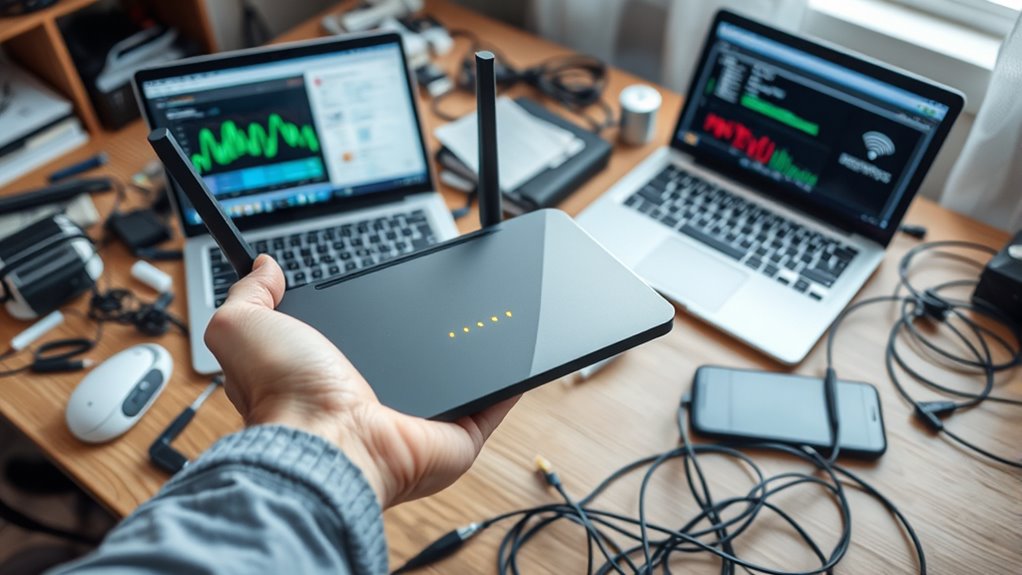
Having a reliable home network is essential, but when issues arise, they can quickly disrupt your daily routine. One common problem you might face is slow or spotty Wi-Fi connections. Often, Wi-Fi interference is the culprit. This interference occurs when signals from other electronic devices or neighboring networks interfere with your Wi-Fi signal, causing disruptions or reduced speeds. To minimize this, start by identifying potential sources of interference, like cordless phones, microwave ovens, or baby monitors, and keep your router away from these devices. It’s also helpful to switch your Wi-Fi channel to a less congested one through your router’s settings, which can markedly improve connectivity.
Identify and minimize Wi-Fi interference sources to improve your connection quality.
Another critical factor influencing your network’s performance is router placement. If your router is tucked away in a corner, hidden behind furniture, or placed close to thick walls, it can weaken your signal and create dead zones in your home. To optimize your network, position your router in a central, open location, ideally elevated on a shelf or mounted on a wall. This allows the signal to spread evenly throughout your space. Avoid placing the router near metal objects, large appliances, or electronic devices that emit electromagnetic interference. The goal is to give your Wi-Fi the best chance to reach every corner of your home without obstructions or interference.
If you’re experiencing persistent Wi-Fi interference, consider upgrading your router to a dual-band or tri-band model. These routers can operate on multiple channels and frequencies, reducing congestion and interference. Similarly, adjusting your router’s placement regularly can help adapt to changes in your environment, such as new furniture or electronic devices. Keep in mind that walls, floors, and furniture can all weaken your Wi-Fi signal, so testing different locations can make a markedly positive difference in your connection quality. Additionally, understanding Wi-Fi interference and how it impacts signal strength can help you make more informed decisions about your network setup.
Lastly, don’t forget to update your router’s firmware regularly. Manufacturers often release updates that fix bugs, improve performance, and enhance security. A well-maintained router not only performs better but also helps prevent issues caused by outdated software. If you notice persistent problems even after optimizing placement and reducing interference, consider resetting your router or contacting your internet provider for further assistance. Troubleshooting home networking issues isn’t always straightforward, but paying close attention to Wi-Fi interference and router placement can often resolve many common frustrations, restoring your connection and peace of mind.

TP-Link AX1800 WiFi 6 Router (Archer AX21) – Dual Band Wireless Internet, Gigabit, Easy Mesh, Works with Alexa – A Certified for Humans Device, Free Expert Support
DUAL-BAND WIFI 6 ROUTER: Wi-Fi 6(802.11ax) technology achieves faster speeds, greater capacity and reduced network congestion compared to…
As an affiliate, we earn on qualifying purchases.
As an affiliate, we earn on qualifying purchases.
Frequently Asked Questions
How Can I Improve Wi-Fi Signal Strength Throughout My House?
You can enhance your Wi-Fi signal strength by setting up a mesh network, which provides seamless coverage across your house. Additionally, use Wi-Fi extenders to boost the signal in dead zones. Place these devices strategically, preferably halfway between your router and weak spots, to maximize their effectiveness. Combining a mesh system with extenders ensures a stronger, more reliable connection throughout your home, eliminating dead zones and slow spots.
What Should I Do if My Connection Drops Randomly?
When your connection drops randomly, check for signal interference from other devices like microwaves or cordless phones. Restart your router and update its firmware. You should also prioritize your device in the router settings to guarantee a stable connection. Moving closer to the router can help, and using a wired connection for essential devices can prevent drops. These steps improve stability and reduce the chances of your connection dropping unexpectedly.
How Do I Update My Router’s Firmware?
Fast-paced firmware fixes fortify your router’s security and stability. To update your router’s firmware, first, access your router’s admin panel by typing its IP address into your browser. Then, locate the firmware update section—often under “Advanced” or “Administration”—and follow prompts to upload the latest firmware file from the manufacturer’s website. Regular updates guarantee your network remains secure, swift, and synchronized.
Why Are Some Devices Unable to Connect to My Network?
Some devices may be unable to connect to your network because of device compatibility issues or network congestion. Check if the devices support your network’s frequency band (2.4GHz or 5GHz). Too many devices connected at once can also cause congestion, making it hard for new devices to join. Restart your router, update device software, and limit the number of connected devices to improve connectivity.
How Can I Secure My Home Network From Unauthorized Access?
To secure your home network from unauthorized access, you should focus on strong password management by creating unique, complex passwords for your Wi-Fi and devices. Enable WPA3 encryption for better security, and consider network segmentation by setting up separate networks for guests and smart devices. Regularly update your router firmware, disable WPS, and monitor connected devices to keep your network safe from intruders.

WiFi Router Cover, WiFi RF Blocking Wireless, Blocks 5G Protective Cover 13.7 x 15.7
RF radiation caused by router. Modem/Wifi Cover provides over 60dB shielding! Shielding frequency range of 10MHz to 3GHz…
As an affiliate, we earn on qualifying purchases.
As an affiliate, we earn on qualifying purchases.
Conclusion
By following these troubleshooting tips, you can substantially improve your home network’s performance. Did you know that 46% of Wi-Fi issues are caused by interference or placement? Moving your router to a central, elevated spot and switching to less congested channels can make a huge difference. Regular updates and maintenance keep your connection stable and secure. Take these simple steps, and enjoy faster, more reliable internet every day.
router placement stand
As an affiliate, we earn on qualifying purchases.
As an affiliate, we earn on qualifying purchases.

Wi-Fi Analyzer
Generates a snapshot view of nearby Wi-Fi signals
As an affiliate, we earn on qualifying purchases.
As an affiliate, we earn on qualifying purchases.