
TL;DR

Get business pricing on networking and server gear
- Business-only prices and quantity discounts
- Tax-exempt purchasing
- Multiple users, one account, clear invoices
An XDA Developers writer reported quicker smart-plug and camera responses, higher laptop download speeds and lower jitter after switching off 802.11b on a crowded 2.4 GHz home network. The change also disconnected one distant balcony plug, showing that results depend on device compatibility and signal range; the measurements come from one home, not a controlled broader test.
An XDA Developers writer reported that switching off 802.11b support on a single-band fiber router made most devices in the writer’s home respond faster, including smart plugs and a camera. The change also knocked one distant balcony plug offline, illustrating the trade-off: removing an older Wi-Fi mode may free airtime on a crowded 2.4 GHz network, but can reduce the reach of devices relying on weak signals.
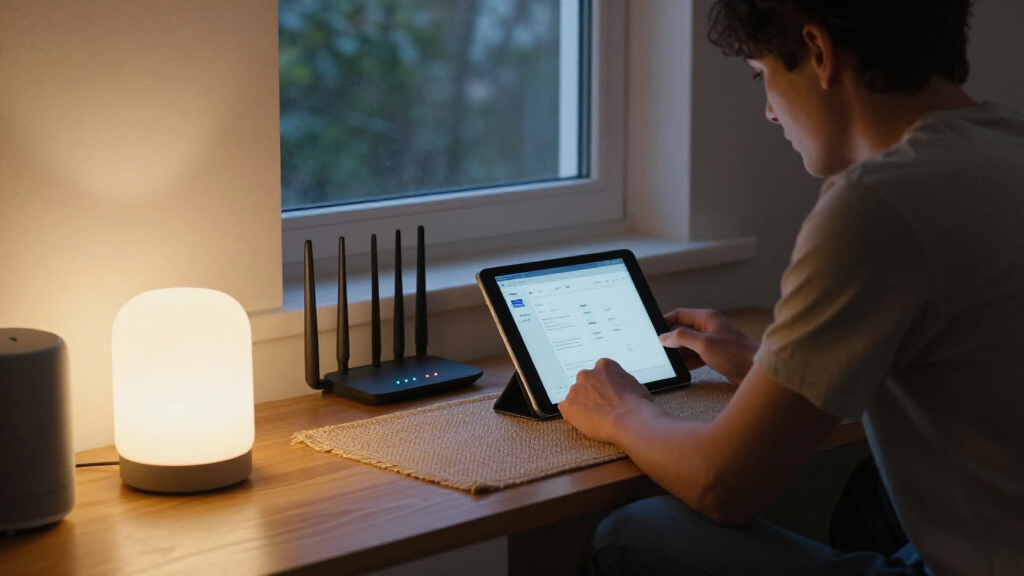
The writer’s ISP-installed Syrotech router has one 2.4 GHz radio shared by phones, computers, a television and smart-home devices. With 14 neighboring networks visible from the couch, the writer suspected that keeping 802.11b enabled was adding overhead. The router’s wireless mode was changed from “B+G+N” to “G+N,” preserving support for 802.11g while dropping 802.11b.
In a comparison conducted on two Sunday evenings a week apart, with a Prime Video program streaming on the television each time, the writer averaged 10 trials per test. Smart-plug response time fell from 2.6 seconds to 1.1 seconds, and camera live-view loading fell from 5.9 to 3.4 seconds. A MacBook Air M2’s bedroom download measurement rose from 44 to 57 Mbps, while measured jitter fell from 21 to 8 milliseconds.
The writer said the network’s Wi-Fi went down for about 40 seconds as the router restarted. Most devices reconnected, but a balcony smart plug did not. Moving it to an indoor outlet near the balcony door restored its connection, according to the account. The measurements are a single-home report; the article does not establish that other routers or households will see the same results.
I Turned Off 802.11b on My Fiber Router. Devices Felt Snappier.
An XDA Developers writer switched a crowded 2.4 GHz router from “B+G+N” to “G+N.” Smart plugs, a camera and laptop measurements improved. One faraway balcony plug lost its connection.
These are observations from one home and two Sunday evenings—not a controlled test across routers or households.
Quicker responses. Lower jitter.
The writer averaged 10 trials per test on two evenings a week apart, with a Prime Video program streaming during both sessions. The figures below compare the reported before and after results.
A setting change with a coverage trade-off
The router’s single 2.4 GHz radio served phones, computers, a television and smart-home devices. Disabling 802.11b may free airtime in some crowded settings, but it can also affect devices depending on weak signals.
Most devices reconnected
Smart-plug response, camera loading, laptop download speed and jitter all moved in the favorable direction in this account.
The balcony plug dropped offline
The router’s Wi-Fi was unavailable for about 40 seconds while it restarted. Most devices reconnected, but the distant balcony plug did not. The writer said an indoor outlet near the balcony door restored its connection.
From legacy mode to “G+N”
On the tested Syrotech fiber router, the writer changed the wireless mode from “B+G+N” to “G+N,” keeping 802.11g compatibility while dropping 802.11b.
Older 802.11b rates can use more airtime for network traffic. Cisco engineer Jim Florwick’s 2014 “802.11b tax” discussion is cited for historical estimates; those figures were not measured on this router.
The account found the mode under WLAN and Basic Settings. Labels differ across routers. OpenWrt also has an “Allow legacy 802.11b rates” setting, described in its documentation as off by default for a long time.
What this report can—and can’t—tell you
The comparison covers a single-band 2.4 GHz network and one household setup.
Tests were a week apart. Normal network variation could have contributed to the differences.
Neighboring networks were counted, but channel usage and interference were not measured.
Device support depends on its Wi-Fi capabilities, security settings and signal conditions.
The writer also reported a printer link changing from 54 to 72 Mbps after switching WPA2 Mixed from TKIP and AES to AES only. Further testing was not provided.
The account does not establish that other homes, routers or device mixes will see the same result.
Check compatibility before changing modes
If you explore the setting, verify device support and coverage after the router restarts. Keep any legacy mode needed by household equipment, and pay special attention to devices at the edge of the signal.
Faster Responses, With a Range Trade-Off
The report highlights a setting that can matter when many devices share a busy 2.4 GHz channel. Older Wi-Fi compatibility may require a router to send some network-management traffic at legacy rates, using airtime that newer devices could otherwise share. Removing 802.11b support may help in some settings, but the reported gains should not be treated as a guaranteed speed boost.
The downside is relevant for smart-home equipment placed far from a router. The writer’s balcony plug could no longer maintain its connection, even though most devices continued working. For readers, the practical point is to weigh responsiveness against coverage and check that older equipment still connects before relying on a changed mode.
Products Worth Considering

Logitech MX Keys S Wireless Keyboard, Graphite

Bose QuietComfort Wireless Noise-Cancelling Over-Ear Headphones, Black

Sony WH-1000XM6 Wireless Noise-Canceling Over-Ear Headphones, Blue, Bundle
As an affiliate, we earn on qualifying purchases.
The Router Mode Behind the Test
On the tested Syrotech router, the writer found the setting in the administrator page under WLAN and Basic Settings. Selecting “G+N” rather than “N only” kept 802.11g compatibility. Other routers may use different labels, and the source account does not verify a universal menu path. It also notes that OpenWrt has a setting called “Allow legacy 802.11b rates,” which its documentation says has been off by default for a long time.
The writer cited Cisco engineer Jim Florwick’s 2014 discussion of an “802.11b tax,” which estimated that each network name could use about 3% of channel airtime at old rates and said additional 802.11b handshaking could cut usable bandwidth by up to half. Those figures are attributed to that earlier analysis; they are not measurements of the writer’s router. The report also says many common smart-plug chips, including the ESP8266 and ESP32, support newer Wi-Fi modes, while the original Nintendo DS supports 802.11b or b/g with WEP or no security and was already incompatible with the writer’s WPA2 network.
While checking the router, the writer also found WPA2 Mixed security allowing TKIP and AES. The account says the printer was connecting at 54 Mbps and reconnected at 72 Mbps after the writer changed the cipher to AES only. The source text ends before giving any further printer testing or details, so that result is a separate observation rather than a quantified part of the 802.11b comparison.
““Nearly is the word to watch.””
— XDA Developers writer
Results May Vary by Router and Room
The comparison covers one home, one router and two evenings. The source does not report controlled tests across router models, channel conditions or different device types, and it does not establish how much of the measured change came specifically from disabling 802.11b rather than normal variation in the network. The number of neighboring networks is reported, but no channel-occupancy measurement is provided.
It is also unclear how the change would affect older devices in other households or how much coverage typically falls when legacy rates are disabled. The balcony plug’s recovery after relocation does not show whether every weak-signal device can be restored in the same way. The source’s discussion of the printer’s AES setting is incomplete, so the durability and wider effects of that separate adjustment are not reported.
Check Compatibility Before Changing Modes
For anyone considering a similar change, the report points to a cautious sequence: identify the router’s wireless mode, retain support for any older devices that still need it, and verify that household equipment reconnects after applying the setting. A G+N mode was the writer’s choice, but router options and device needs differ. A device at the edge of coverage may need a better location or another network solution if its connection becomes unreliable.
No wider test or follow-up measurement is included in the source account. The next useful evidence would be repeat testing across more days and devices, with router and signal conditions documented, and a check that the disconnected plug remains stable in its new position.
Key Questions
What changed after the writer disabled 802.11b?
In the writer’s home tests, smart-plug response time changed from 2.6 to 1.1 seconds, camera live-view loading from 5.9 to 3.4 seconds, laptop downloads from 44 to 57 Mbps, and jitter from 21 to 8 milliseconds. These are results from one reported setup, not a promise of similar gains elsewhere.
Did every smart device stay connected?
No. Most devices reconnected after the router restarted, but a distant balcony smart plug did not. The writer said moving it to an indoor outlet near the balcony door restored service.
Why might turning off 802.11b affect coverage?
The report says legacy 802.11b rates can help devices with weak signals remain connected. Disabling those rates may reduce the reach available to an older or distant device, though the amount of any change will depend on the router and home.
Will this setting improve every home Wi-Fi network?
The source does not establish that. Its measurements came from one single-band 2.4 GHz network with 14 neighboring networks visible from the writer’s couch. Router features, interference, signal strength and connected devices vary.
What should someone check before changing the router mode?
Check whether any older devices depend on 802.11b, confirm the router offers a mode that retains the compatibility you need, and test connections after the radio restarts. The source’s writer chose G+N rather than N-only to keep 802.11g support.
Source: XDA Developers