Experiencing inconsistent internet can be more frustrating than it needs to be, and often, small issues cause big disruptions. While it might seem like a complex problem, a systematic approach can help you identify and fix the root cause. From interference to hardware faults, a variety of factors could be at play. Understanding how to troubleshoot effectively can make all the difference, so let’s explore how you can regain stable, reliable connectivity.

Get business pricing on networking and server gear
- Business-only prices and quantity discounts
- Tax-exempt purchasing
- Multiple users, one account, clear invoices
Key Takeaways
- Restart your modem and router to clear temporary glitches causing connectivity issues.
- Check physical connections and ensure all cables are secure and undamaged.
- Move the router to a central, open location away from interference sources like cordless phones and microwaves.
- Update or reinstall network drivers and firmware to fix software conflicts and improve hardware performance.
- Test and reseat network adapters or replace faulty hardware to eliminate hardware-related connection drops.

Intermittent connectivity can be frustrating, especially when it disrupts your work or streaming. One common culprit behind these interruptions is signal interference. Wireless signals are vulnerable to interference from other electronic devices, such as cordless phones, microwave ovens, or neighboring Wi-Fi networks. To start troubleshooting, you should identify potential sources of interference around your home or office. Move your router away from these devices and guarantee it’s placed in an open, central location. Changing the Wi-Fi channel on your router can also help reduce interference, especially if nearby networks are using the same frequency. Many routers allow you to switch between 2.4 GHz and 5 GHz bands, which can also help minimize interference and improve stability.
Identify and move your router away from electronic devices to reduce signal interference and improve connectivity stability.
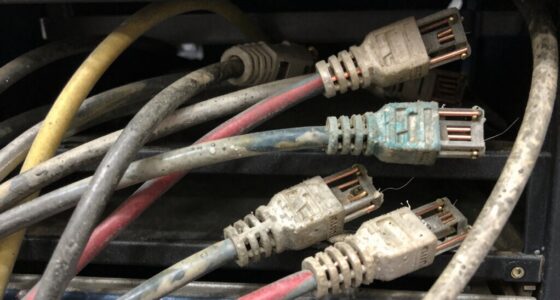
Another vital step is performing hardware diagnostics. Sometimes, the issue isn’t external interference but a problem with your device or router hardware. Begin by restarting your modem and router—this simple step can clear temporary glitches that cause connectivity hiccups. If problems persist, check the physical connections—ensure all cables are securely plugged in and undamaged. Faulty or loose cables can cause intermittent signals that resemble interference issues. If your device has indicator lights, verify they’re showing normal operation; unusual blinking or color changes may point to hardware malfunctions needing further investigation.
If your hardware diagnostics reveal no obvious issues, consider testing your device’s network adapter. On a computer, you can run built-in diagnostics tools to check for driver issues or hardware failures. For example, updating or reinstalling network drivers can resolve driver conflicts or outdated software that leads to connectivity drops. If your device has a removable Wi-Fi card, reseating or replacing it might restore stability. For routers, firmware updates are equally important; manufacturers often release patches that fix known bugs and improve performance. Keeping your hardware up to date can prevent many common connectivity issues.
Additionally, understanding the self-watering plant pots system can help illustrate how consistent maintenance and monitoring are crucial for optimal performance. Just as troubleshooting hardware involves checking connections and updates, maintaining healthy plants requires proper watering practices and timely interventions. Finally, verify whether your hardware is overheating or physically damaged, as this can impair signal transmission. Overheating components may intermittently fail, causing connection drops. If you notice signs of damage or excessive heat, replacing the hardware might be necessary. By systematically addressing signal interference and performing thorough hardware diagnostics, you can identify the root cause of your intermittent connectivity and restore a stable, reliable internet connection. Remember, patience and methodical troubleshooting are key—sometimes, resolving these issues requires a combination of adjustments and updates.
As an affiliate, we earn on qualifying purchases.
Frequently Asked Questions
Can Software Updates Cause Connectivity Issues?
Yes, software updates can cause connectivity issues. You might face firmware conflicts or hardware compatibility problems after updating, which disrupt your network. Sometimes, the new software conflicts with existing drivers or firmware, leading to unstable connections. To fix this, verify your device drivers and firmware are compatible with the latest update. Rolling back updates or checking for patches can also help restore stable connectivity and resolve these issues quickly.
How Do I Identify if a Specific Device Is the Problem?
You can identify if a specific device is the problem by performing device-specific diagnostics, which check for hardware or software issues. Additionally, analyze the signal strength of that device to see if it’s weaker than others on your network. If diagnostics reveal problems or signal strength is low, it likely indicates the device is causing connectivity issues. Fix or replace the device to restore stable network performance.
What Role Does Network Congestion Play in Intermittent Connectivity?
Network congestion causes intermittent connectivity by overwhelming your bandwidth, leading to slow or dropped connections. You can manage this by implementing bandwidth management techniques and traffic prioritization, which guarantee critical devices and applications get the necessary resources. Regularly monitoring network usage helps identify congestion points, so you can adjust priorities or upgrade capacity. This proactive approach minimizes disruptions and keeps your network running smoothly during peak times or heavy traffic.
Are There Advanced Tools for Diagnosing Network Problems?
Think of advanced tools as your network’s detective squad. You can use network mapping to visualize your entire system, revealing hidden bottlenecks. Packet analysis lets you peer into data conversations, pinpointing where issues lurk. These tools are powerful, helping you uncover problems faster and more accurately. With them, you turn the chaos of intermittent connectivity into a clear story, making troubleshooting feel like solving a complex mystery with confidence.
How Can I Prevent Future Connectivity Interruptions?
To prevent future connectivity interruptions, you should optimize your router placement, keeping it central and away from metal objects or thick walls. Minimize wireless interference by reducing the number of devices operating on the same frequency or switching to a less congested channel. Regularly update your router’s firmware and consider upgrading to a more advanced model if issues persist. These steps help make certain of a stable, reliable connection over time.
As an affiliate, we earn on qualifying purchases.
Conclusion
Remember, troubleshooting your connection is like solving a puzzle—each piece matters. Stay patient and methodical, checking for interference, hardware issues, and software glitches. By following these steps, you’ll clear the path for a stable connection, turning chaos into clarity. Don’t rush; sometimes the fix is just a small adjustment away. With persistence and care, you’ll soon enjoy a smooth, reliable internet experience, like finally finding the missing piece that completes the picture.
As an affiliate, we earn on qualifying purchases.
As an affiliate, we earn on qualifying purchases.
Fall Picks
fall essentials
As an affiliate, we earn on qualifying purchases.