
Setting up a reliable and secure home office network is essential for maintaining productivity and protecting sensitive information. Proper hardware placement, strong security practices, and regular updates can make a significant difference. But with so many options and considerations, knowing where to start can be challenging. To guarantee your network is both efficient and safe, it’s helpful to follow proven tips and strategies designed for remote work environments.
Key Takeaways
- Position your router centrally and elevate it to ensure optimal Wi-Fi coverage throughout your home office.
- Enable WPA3 encryption and change default passwords to strengthen network security.
- Use wired Ethernet connections for critical devices to enhance stability and speed.
- Regularly update firmware and hardware to protect against vulnerabilities and improve performance.
- Set up a separate guest network to isolate visitors and safeguard your main work network.
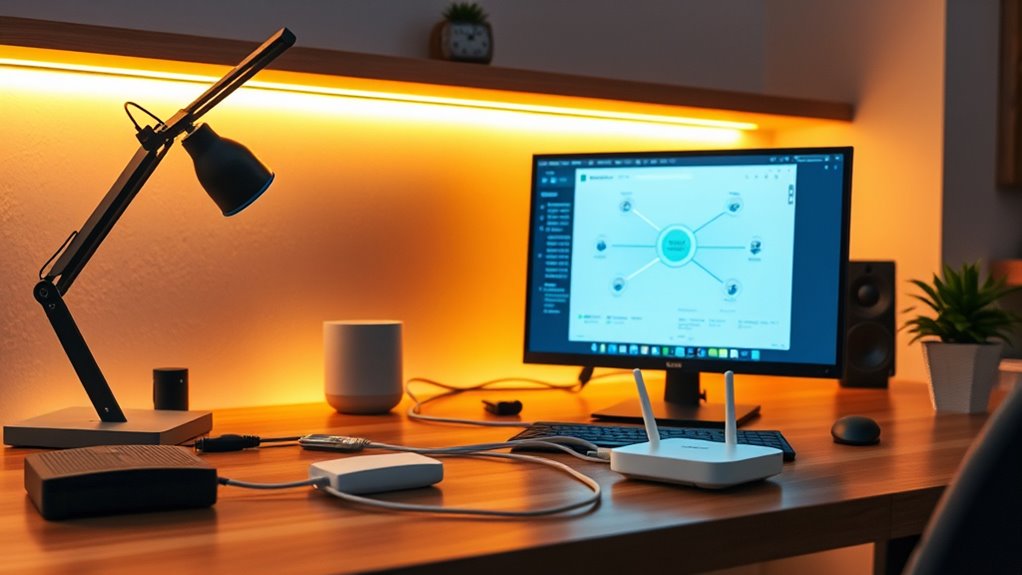
Setting up a reliable home office network is vital for productivity and smooth daily operations. When you prioritize wireless security, you protect your sensitive data from potential threats, guaranteeing your work remains private. Start by changing the default passwords on your router and Wi-Fi network to strong, unique ones. Enable WPA3 encryption if your router supports it, as it provides the latest security standards. Avoid using common passwords or easily guessable phrases, and consider setting up a separate guest network for visitors. This keeps your main network more secure and prevents unauthorized access.
Hardware optimization plays an essential role in maintaining a fast and reliable connection. Begin by positioning your router in a central location, away from thick walls, metal objects, and electronic interference. Elevate the device if possible, such as placing it on a shelf rather than on the floor. This improves signal distribution, reducing dead zones and lag during video calls or large file transfers. Also, ensure your hardware is up-to-date; firmware updates often include security patches, bug fixes, and performance enhancements that can boost your network’s stability. Regularly check your router manufacturer’s website for updates and apply them promptly. Additionally, consider using network management tools to monitor device connections and optimize bandwidth allocation.
To enhance wireless security further, consider disabling remote management features unless you need them for troubleshooting. This prevents outsiders from accessing your router’s settings via the internet. Enable network firewalls, and consider using additional security measures like VPNs for extra layers of protection, especially if you handle sensitive information. These steps help secure your data and prevent cyberattacks.
Optimizing hardware involves more than just router placement. If your internet plan allows, upgrade to a router that supports the latest standards, such as Wi-Fi 6, for faster speeds and better capacity. If your current hardware struggles with multiple devices, adding a mesh Wi-Fi system can distribute the load more evenly, reducing congestion. Connecting critical devices directly to the router via Ethernet cables can also improve stability and speed, especially for tasks that demand high bandwidth, like video editing or large file uploads.
Finally, routinely reboot your hardware to clear caches and refresh connections. Keep an eye on your network’s performance, and don’t hesitate to replace outdated equipment that no longer meets your needs. By focusing on wireless security and hardware optimization, you create a secure, high-performing environment where your work can flourish without interruptions or vulnerabilities. Recognizing and addressing potential network vulnerabilities ensures your setup remains robust and protected.
As an affiliate, we earn on qualifying purchases.
Frequently Asked Questions
How Do I Secure My Home Wi-Fi Network Effectively?
To secure your home Wi-Fi network, you should enable password encryption, like WPA3, to protect your data from unauthorized access. Change your default router password to a strong, unique one regularly. Also, consider device segmentation by creating separate networks for work and personal devices, reducing potential security risks. These steps help keep your network safe, ensuring your information remains private and protected from intruders.
What Is the Best Router Placement for Optimal Coverage?
Sure, placing your router in the corner of your basement is the secret to perfect signal strength—said no one ever. For ideal coverage, position your router centrally, off the floor, and away from thick walls and metal objects. Keep it elevated on a shelf or desk, ensuring clear lines of sight. This router placement maximizes signal strength, giving you fast, reliable internet everywhere in your home—no more dead zones or frustrating buffering.
How Can I Prioritize Bandwidth for Work Applications?
To prioritize bandwidth for work applications, use bandwidth management tools on your router. Enable Quality of Service (QoS) settings to assign higher priority to your work-related devices and apps. This ensures your work applications get the necessary bandwidth, reducing lag and buffering. Regularly check and adjust QoS rules as needed to maintain peak performance. This way, your work tasks stay smooth, even when other devices are using the network.
What Are Common Troubleshooting Steps for Connectivity Issues?
When troubleshooting connectivity issues, think of your network like a busy highway—sometimes traffic jams happen. First, check your cables with cable testing to make sure they’re intact. Then, look for signal interference from other devices or nearby electronics. Restart your modem and router to refresh the connection. If problems persist, reset your network settings or update firmware. These steps help clear the roadblocks and get your network running smoothly again.
How Do I Set up a Guest Network Securely?
To set up a guest network securely, you should enable network segmentation by creating a separate guest Wi-Fi network on your router. Use a strong, unique password and disable access to your main network and devices. Regularly update your router’s firmware, and avoid sharing guest credentials. This way, your guest network stays isolated, protecting your primary data while providing internet access to visitors.
As an affiliate, we earn on qualifying purchases.
Conclusion
By following these tips, you’ll set up a home office network that’s both secure and efficient. Position your router wisely, keep firmware updated, and use strong security measures to stay ahead of potential threats. Remember, a stitch in time saves nine—regular maintenance prevents bigger problems down the road. With a little effort now, you’ll enjoy smooth, worry-free connectivity that keeps your work flowing seamlessly.
As an affiliate, we earn on qualifying purchases.
As an affiliate, we earn on qualifying purchases.