Before blaming cabling for slow speeds, start by checking for wireless interference from other devices like microwaves or Bluetooth gadgets, and verify your router isn’t obstructed or far from your devices. Confirm that your router’s settings are optimized, such as updating firmware and choosing the best Wi-Fi channel. Also, see if multiple devices are hogging bandwidth or performing heavy tasks. If these don’t fix the issue, there’s more to explore to get your speed back on track.
Key Takeaways
- Ensure the wireless router is properly positioned to minimize interference and improve signal strength.
- Verify that the Wi-Fi channels are not overcrowded by nearby networks.
- Restart the router to resolve temporary glitches affecting network speed.
- Check for device activity that may be consuming excessive bandwidth.
- Confirm that the router firmware is up to date and wireless settings are optimized.

When experiencing slow internet speeds, it’s easy to assume that faulty cabling is the culprit. However, before you start pulling out tools or calling for professional help, it’s worth considering other factors that could be affecting your connection. One common issue is wireless interference, which can significantly slow down your Wi-Fi performance without any physical damage to your cables. Wireless interference occurs when other electronic devices, neighboring Wi-Fi networks, or even thick walls disrupt the signal, causing your internet to lag or drop intermittently. To troubleshoot this, try relocating your router to a more central location, away from other electronics like cordless phones, microwaves, or Bluetooth devices. Switching to a less congested Wi-Fi channel can also help reduce interference, improving speeds without touching your cables. Additionally, understanding the underlying digital concepts can help you better diagnose network issues and optimize your setup.
Wireless interference from electronics or walls can slow your Wi-Fi; try relocating your router or changing channels.
Another key aspect to check is your router configuration. Sometimes, slow speeds aren’t due to cabling but rather to misconfigured or outdated settings. Access your router’s admin panel and verify that it’s running the latest firmware. Firmware updates often include performance improvements and security patches that optimize your network. Also, review your wireless settings—ensure you’re using the appropriate Wi-Fi mode (such as 802.11ac or 802.11ax) and the correct frequency band (2.4 GHz or 5 GHz). The 2.4 GHz band tends to be more crowded, especially in dense areas, and can cause slower speeds, whereas 5 GHz offers faster connections over shorter distances. Adjusting your router’s transmit power or enabling Quality of Service (QoS) features can prioritize bandwidth for critical devices, making your overall internet experience smoother. Checking your network infrastructure quality can reveal if outdated or damaged cables are contributing to slow speeds, even if the wireless setup is optimized.
It’s also beneficial to understand how cabling quality impacts overall network performance, as poor quality or damaged cables can still lead to slow speeds despite optimal wireless settings. Additionally, it’s important to consider how many devices are connected to your network at once. Too many devices streaming, gaming, or downloading can saturate your bandwidth, making it seem like your cabling is at fault. If you notice multiple devices hogging bandwidth, try limiting their activity or scheduling large downloads during off-peak hours. Sometimes, simply restarting your router can resolve temporary glitches affecting performance. This refreshes the connection and clears any cache issues that might be slowing things down. Remember, cabling can still be a factor, but these software and environmental issues are often the root causes of slow internet speeds.
Before replacing or inspecting your cables, take these steps to optimize your current setup. Wireless interference and router configuration are often overlooked but critical elements that can make a substantial difference. By addressing these, you might find your connection speeds improve without the need for costly cable replacements.

TP-Link Deco S4 Mesh AC1900 WiFi System – Up to 5,500 Sq.ft. Coverage, Replaces WiFi Router and Extender, Gigabit Ports, Works with Alexa, Deco S4(3-Pack)
A New Way to WiFi: Deco Mesh technology gives you a better WiFi experience in all directions with…
As an affiliate, we earn on qualifying purchases.
As an affiliate, we earn on qualifying purchases.
Frequently Asked Questions
Can Software Updates Affect Internet Speeds?
Yes, software updates can affect your internet speeds. When your device updates, it might change network hardware drivers or settings, which can impact performance. Additionally, updates to your browser settings or network-related apps could slow down your connection. To improve speeds, check if your network hardware drivers are up-to-date and review your browser settings, ensuring no unnecessary extensions or configurations are hindering your internet experience.
How Does Network Congestion Impact Speed Tests?
Network congestion is like a traffic jam, slowing down your speed test results. During peak times, bandwidth throttling and network prioritization kick in, limiting your bandwidth and causing slower speeds. These measures aim to manage overall network traffic but can make your connection seem sluggish. To get accurate results, try testing during off-peak hours, when fewer users compete for bandwidth, revealing your true internet speed.
Are Wireless Devices a Source of Slow Internet?
Wireless devices can definitely cause slow internet speeds. Wireless interference from other electronics or neighboring Wi-Fi networks disrupts your connection, leading to sluggish performance. Additionally, device compatibility issues may prevent the best connection speeds, especially with older or less capable hardware. To improve speed, make sure your devices support the latest Wi-Fi standards, minimize interference by reducing other electronic devices nearby, and consider upgrading your equipment if needed.
Does Router Placement Influence Connection Speed?
You might think your router’s in the perfect spot, but placement really does influence your connection speed. Ironically, putting it in a closet or corner can cause signal interference, slowing everything down. Proper router placement maximizes signal strength and minimizes interference, boosting your internet speed. So, instead of blaming your provider, check if your router’s positioned where it can do its best work—central, elevated, and away from interference sources.
Can Background Applications Slow Down My Network?
Yes, background applications can slow down your network. They consume bandwidth, reducing what’s available for your essential activities. Bandwidth throttling by your internet provider can also limit your speeds, especially during peak times. Additionally, hardware interference from other devices or faulty equipment may cause network sluggishness. To improve speeds, close unnecessary apps, check for throttling, and minimize interference from other electronics near your router.

WiFi Analyzer for Fire Tablet & TV – Signal Meter, Channel Scanner & Network Test
– Large Signal Meter for current Wi-Fi quality.
As an affiliate, we earn on qualifying purchases.
As an affiliate, we earn on qualifying purchases.
Conclusion
Before you start blaming the cables, take a moment to visualize your network as a busy highway. Sometimes, the traffic jams aren’t caused by the pavement but by a toll booth or an accident upstream. By checking your hardware, settings, and connections first, you clear the road for smooth data flow. Remember, a little troubleshooting can turn your sluggish network into a lightning-fast highway, ready to carry your digital traffic without a hitch.
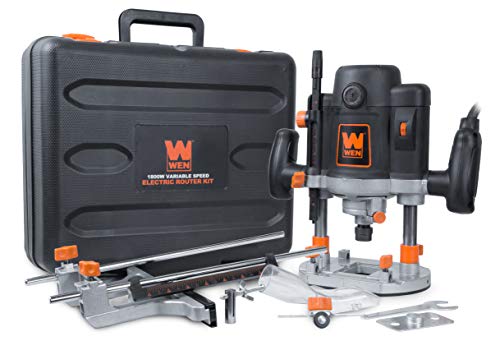
WEN RT6033 15-Amp Variable Speed Plunge Woodworking Router Kit with Carrying Case & Edge Guide
Powerful 15-amp variable speed soft start motor provides speeds from 8, 000 to 23, 000 RPM
As an affiliate, we earn on qualifying purchases.
As an affiliate, we earn on qualifying purchases.

TESMEN TLP-123A Network Cable Tester for RJ11 RJ45, Ethernet Wire Tool for CAT5/CAT5E/CAT6/CAT6A/CAT7/UTP&STP, LAN & TEL Continuity Test, Suitable for Cable Maintenance – Green
Multifunctional Network Cable Tester: TESMEN TLP-123A Supports RJ45 and RJ11, enabling rapid detection of line connectivity, short circuits,…
As an affiliate, we earn on qualifying purchases.
As an affiliate, we earn on qualifying purchases.