Did you know that over 50% of network issues are caused by hardware or configuration problems, not the internet service itself? If your Ethernet connection feels sluggish, it’s worth investigating beyond just your internet plan. Troubleshooting can be straightforward but requires a systematic approach to identify the root cause. From testing your network speed to inspecting cables, understanding where to start makes all the difference—so let’s explore how to diagnose a slow Ethernet connection effectively.
Key Takeaways
- Run speed tests to compare actual speeds with your internet plan’s advertised rates.
- Inspect Ethernet cables for damage or use high-quality, rated cables to ensure proper data transfer.
- Restart routers, switches, and update firmware or drivers to fix software-related slowdowns.
- Check network device port settings and disable bandwidth management features like QoS if necessary.
- Use advanced diagnostic tools and AI-powered solutions for comprehensive hardware and network health analysis.
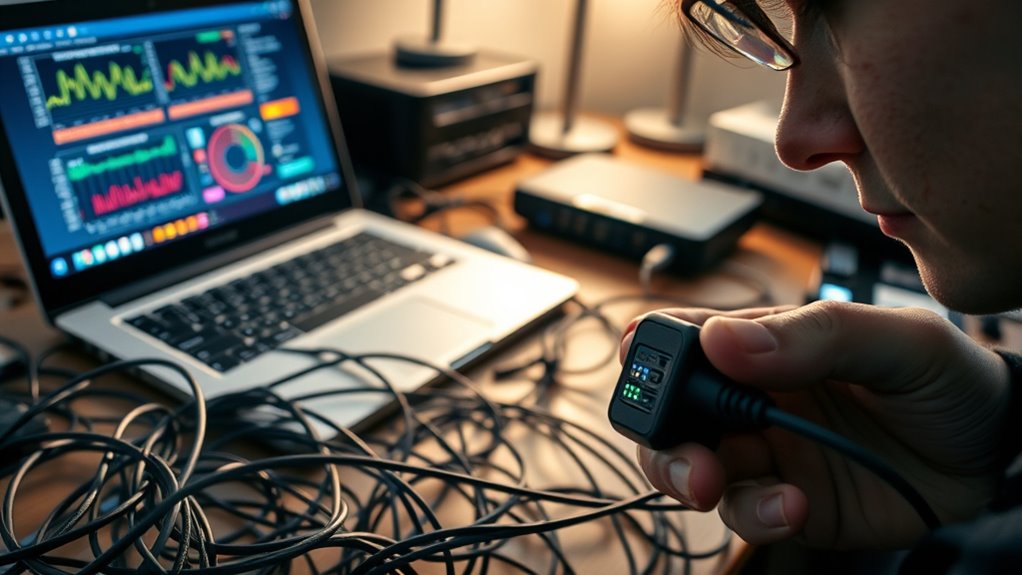
A slow Ethernet connection can be frustrating, especially when you need reliable internet for work or streaming. When your connection seems sluggish, the first step is to determine whether the issue stems from your network setup or your internet service provider. Ethernet speed testing is an essential tool here, allowing you to measure your current download and upload speeds directly over your wired connection. By running a speed test, you can compare your results against your internet plan’s advertised speeds. If your speeds are markedly lower, it indicates a problem within your local network or with the hardware rather than the ISP. This process helps you pinpoint whether the bottleneck exists within your setup, saving you time and unnecessary troubleshooting. Incorporating AI-powered diagnostics can further streamline identifying network issues efficiently.
Network hardware diagnostics play a pivotal role in diagnosing slow Ethernet connections. Start by inspecting your Ethernet cables; damaged or low-quality cables often cause speed drops or intermittent connectivity issues. Replace any worn or questionable cables with new, high-quality ones rated for your network’s speed requirements. Next, focus on your network devices, such as switches, routers, or network interface cards (NICs). Make sure firmware and drivers are up to date, as outdated software can hinder performance. Restarting your router and switches can also clear temporary glitches that might be causing sluggish speeds. Check for any physical damage or loose connections that could be impairing data transfer. Sometimes, a simple reset or replacement can vastly improve your Ethernet performance.
Additionally, consider the configuration settings of your network hardware. Ensure your router’s settings support gigabit speeds if your equipment is capable. Disable any unnecessary features such as QoS or bandwidth management that might prioritize certain traffic over others, potentially slowing down your connection. If you’re using a managed switch, verify that port settings match your network’s speed capabilities. Performing these hardware diagnostics helps eliminate common issues that cause slow Ethernet performance. If after these steps your connection remains sluggish, it’s worth testing different ports or even trying a different Ethernet cable and device to identify if specific hardware components are faulty.

TESMEN TLP-123A Network Cable Tester for RJ11 RJ45, Ethernet Wire Tool for CAT5/CAT5E/CAT6/CAT6A/CAT7/UTP&STP, LAN & TEL Continuity Test, Suitable for Cable Maintenance – Green
- Supports RJ45 and RJ11: Detects line connectivity and faults
- One-button operation: Simple and quick testing process
- LED indicator display: Clear test results at a glance
As an affiliate, we earn on qualifying purchases.
As an affiliate, we earn on qualifying purchases.
Frequently Asked Questions
Can Malware Cause Ethernet Speed Issues?
Yes, a malware infection can cause Ethernet speed issues by creating network interference. Malware often consumes bandwidth or runs background processes that slow down your connection, leading to sluggish speeds. It can also hijack network settings or introduce malicious traffic, disrupting normal data flow. To fix this, run a thorough antivirus scan, remove any detected threats, and update your security software to prevent further network interference.
How Does Outdated Firmware Affect Ethernet Performance?
Outdated firmware can considerably affect your Ethernet performance by causing router instability and compatibility issues. When you neglect firmware updates, your router may struggle to handle network traffic efficiently, leading to slower speeds and dropped connections. Regularly updating your firmware ensures your device benefits from the latest features, security patches, and performance improvements, keeping your Ethernet connection stable and fast. Don’t ignore updates—they’re vital for peak network performance.
Can Environmental Factors Impact Ethernet Cable Performance?
Environmental factors can definitely impact your Ethernet cable performance. Electromagnetic interference from nearby electronic devices or fluorescent lights can cause signal disruptions. Additionally, poor cable shielding leaves your connection vulnerable to interference, leading to slower speeds or drops. To guarantee peak performance, keep cables away from sources of interference and choose cables with proper shielding. Regularly checking your environment can help maintain a stable and fast Ethernet connection.
Is It Normal for Ethernet Speeds to Fluctuate?
Yes, Ethernet speeds can fluctuate, especially if your cable quality isn’t top-notch or interference sources are nearby. For example, a home office setup saw consistent slowdowns during thunderstorms because electrical interference affected the connection. You might notice temporary drops when devices like microwaves or cordless phones operate nearby. To minimize fluctuations, make certain you use high-quality cables and keep interference sources away from your Ethernet setup.
How Do I Test Ethernet Speed on Different Devices?
To test Ethernet speed on different devices, connect each device with a high-quality Ethernet cable and make sure your router is well-placed for ideal signal. Use online speed test tools like Speedtest.net or Fast.com on each device to measure performance. Keep in mind, Ethernet cable quality greatly affects speeds, and proper router placement minimizes interference, helping you get accurate results across all your devices.
As an affiliate, we earn on qualifying purchases.
Conclusion
By following these steps, you can troubleshoot your slow Ethernet connection like a seasoned detective solving a mystery. Think of it as wielding a magnifying glass in a foggy Victorian city—each clue brings you closer to clarity. Remember, sometimes a simple restart or cable check is all it takes. With patience and a keen eye, you’ll restore your network’s speed, making your digital world run as smoothly as a well-oiled steam engine chugging into the sunset.
Ethernet network diagnostic tools
As an affiliate, we earn on qualifying purchases.
As an affiliate, we earn on qualifying purchases.

NETGEAR 5-Port Gigabit Ethernet Unmanaged Network Switch (GS305)
- High-Speed Gigabit Ports: 5 x 1.0Gbps Ethernet ports
- Easy Plug-and-Play Setup: No software or configuration needed
- Versatile Mounting Options: Desktop or wall-mount compatible
As an affiliate, we earn on qualifying purchases.
As an affiliate, we earn on qualifying purchases.