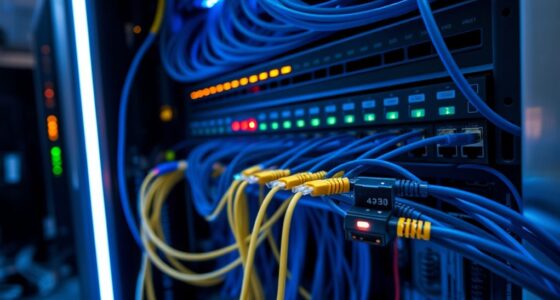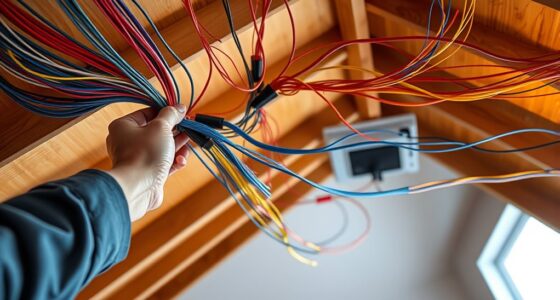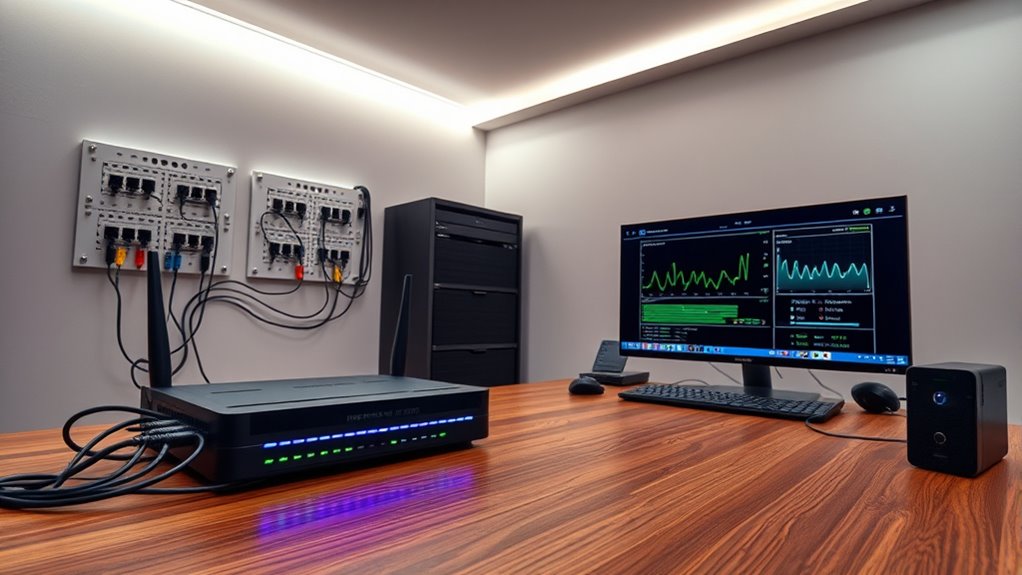

To set up a gigabit home network, start by choosing a high-quality router and switches that support gigabit speeds, and use Cat6 or higher Ethernet cables for wired connections. Position your router centrally to maximize coverage and enable WPA3 encryption for security. Regularly update your device firmware and reset your network when needed. With these steps, you’ll enjoy faster, more reliable connectivity; for detailed guidance, keep exploring how to optimize your setup.
Key Takeaways
- Use high-quality Cat6 or higher Ethernet cables and ensure all devices support gigabit speeds.
- Position your router centrally and free from obstructions to maximize coverage and performance.
- Enable WPA3 encryption and change default passwords for enhanced network security.
- Verify that router and switch ports are configured correctly for gigabit throughput.
- Regularly update firmware and troubleshoot connectivity issues to maintain optimal network performance.

Creating a gigabit home network can notably boost your internet speeds and improve overall connectivity. When you upgrade to gigabit Ethernet, you release faster data transfer rates, which means smoother streaming, quicker downloads, and more reliable online gaming. To get the most out of this upgrade, you need to focus on setting up a secure and efficient network. Network security should be your top priority to prevent unauthorized access and protect your personal data. Start by changing the default passwords on your router and enabling WPA3 encryption if available. This keeps intruders out and secures your wireless connection. Additionally, regularly updating your router’s firmware patches vulnerabilities and enhances performance. Consider segmenting your network with separate SSIDs for different devices, such as smart home gadgets and computers, to minimize potential security risks.
As you set up your gigabit network, you’ll likely encounter connectivity issues from time to time. Troubleshooting connectivity becomes essential to maintain a consistent and fast connection. Begin by checking your cables—make sure you’re using high-quality Cat6 or Cat6a Ethernet cables, which are designed to handle gigabit speeds without signal degradation. Confirm that your router and switches support gigabit speeds, and verify that all ports are configured correctly. Sometimes, devices default to lower speeds or have settings that limit performance. Restart your router and modem to clear any temporary glitches, and guarantee firmware is up to date, as updates can fix bugs affecting connectivity. If you experience persistent issues, check for interference from other wireless devices, cordless phones, or microwaves that may disrupt signals. Position your router in a central location free from obstructions for prime coverage.
Troubleshooting connectivity also involves examining the network settings on your devices. Disable and re-enable network adapters if needed, or forget and reconnect to your Wi-Fi network. Running speed tests can help identify whether your connection is performing at gigabit levels or if bottlenecks exist somewhere in your setup. If you’re still having issues, consider resetting your network configurations to default and reconfiguring from scratch. In many cases, a combination of secure configurations and diligent troubleshooting assures that your gigabit network runs smoothly. Regular maintenance, such as monitoring network traffic and updating hardware firmware, helps sustain high performance and prevents future problems. Implementing powerful marketing strategies can also help you share your new setup’s benefits more effectively with others. Setting up a gigabit home network isn’t just about speed—it’s about creating a resilient, secure, and trouble-free environment for all your connected devices.

B00A128S24
As an affiliate, we earn on qualifying purchases.
As an affiliate, we earn on qualifying purchases.
Frequently Asked Questions
Can My Existing Wiring Support Gigabit Speeds?
Your existing wiring might support gigabit speeds if you’re using Ethernet cables that are Cat5e or higher. Check wiring compatibility, as older cables like Cat5 may not handle the higher data rates required. If your wiring is outdated or uses lower-grade cables, upgrading to Cat6 or Cat6a Ethernet cables can guarantee you get the gigabit performance you want. Always verify your wiring’s specifications before attempting to upgrade your network.
What Is the Cost Difference Between Wired and Wireless Gigabit Setups?
The cost comparison between wired and wireless gigabit setups varies, with wired options generally costing more upfront due to Ethernet cables, switches, and installation, but offering more reliable, faster speeds. Wireless setups tend to be cheaper initially, especially if you already have a compatible router, but may require upgrades for peak performance. Your budget considerations should include long-term reliability and speed needs, balancing initial costs with potential ongoing expenses or performance limitations.
How Do I Troubleshoot Slow Gigabit Network Connections?
Don’t let slow speeds be a thorn in your side. First, check for network congestion—multiple devices hogging bandwidth could be the culprit. Next, verify hardware compatibility; confirm your cables, switches, and routers support gigabit speeds. Restart your equipment and update firmware if needed. If issues persist, test with different cables or ports. Keeping everything optimized helps your gigabit network run smoothly without hitting the brakes.
Is a Gigabit Network Necessary for Small Home Offices?
A gigabit network isn’t always necessary for small home offices, but it can boost network scalability and support multiple devices simultaneously. If you use high-bandwidth applications or have several users, upgrading guarantees smooth performance. Check device compatibility beforehand, as older equipment may not support gigabit speeds. If your current setup handles your needs well, a gigabit upgrade might not be urgent, but it’s a good future-proof investment.
What Are the Security Considerations for a Gigabit Home Network?
You should prioritize network encryption and device authentication to keep your gigabit home network secure. Enable WPA3 encryption on your Wi-Fi to prevent unauthorized access, and use strong, unique passwords. Regularly update your router’s firmware, and verify all connected devices with strong credentials. This approach helps protect your data from cyber threats and ensures only trusted devices access your high-speed network.
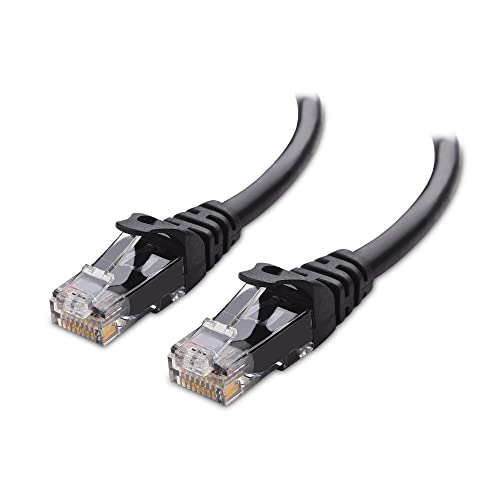
Cable Matters 10Gbps Snagless Cat 6 Ethernet Cable – 25ft, Cat 6 Cable, Cat6 Cord, Ethernet Cord, Black
High-Performance Connectivity: This Cat 6 ethernet cable is designed for superior performance, with a 24 AWG copper wire…
As an affiliate, we earn on qualifying purchases.
As an affiliate, we earn on qualifying purchases.
Conclusion
Now, imagine your home alive with lightning-fast connections, streaming seamlessly like a gentle river flowing without interruption. With your gigabit network in place, every device becomes part of this vibrant web, ready to handle your busiest days with ease. Feel the confidence of having a future-proof setup, where data zips effortlessly through every corner of your home. You’ve created a digital haven—fast, reliable, and ready for whatever comes next.

TP-Link AX1800 WiFi 6 Router (Archer AX21) – Dual Band Wireless Internet, Gigabit, Easy Mesh, Works with Alexa – A Certified for Humans Device, Free Expert Support
DUAL-BAND WIFI 6 ROUTER: Wi-Fi 6(802.11ax) technology achieves faster speeds, greater capacity and reduced network congestion compared to…
As an affiliate, we earn on qualifying purchases.
As an affiliate, we earn on qualifying purchases.
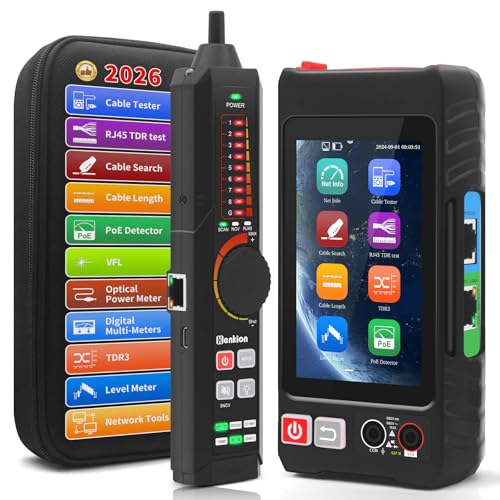
Multifunction RJ45 Network Caber Tester,Full Features UTP Cable Tester Cable Tracer,4" IPS Touch Screen Support TDR,DMM,OPM,POE++ Detect,Level Meter,Ethenet Network Tester,RJ45 TDR,Length,FTP(LT-600T)
【Upgrade Network Cable Tester&Cable Tracer】Advanced UTP cable test,test UTP cable's sequence,type and remote kit,quickly detect the near-end,mid-end and…
As an affiliate, we earn on qualifying purchases.
As an affiliate, we earn on qualifying purchases.