
Choosing the right USB specification depends on understanding your specific needs for speed, power, and compatibility. Whether you’re transferring large files, connecting multiple devices, or prioritizing quick charging, the options can seem overwhelming. Making an informed decision requires considering current device support and future-proofing your setup. To find the best fit, consider what features matter most to you and how they align with your existing hardware.
Key Takeaways
- Assess your data transfer needs; opt for USB 3.2 or USB4 for high-speed tasks like large file transfers and 4K video streaming.
- Ensure device and port compatibility, considering backward compatibility to avoid unnecessary upgrades.
- Consider power requirements; newer standards offer faster charging for power-hungry peripherals.
- Decide between wired and wireless options based on latency, convenience, and device usage scenarios.
- Future-proof by choosing USB standards that support upcoming peripherals and technological advancements.
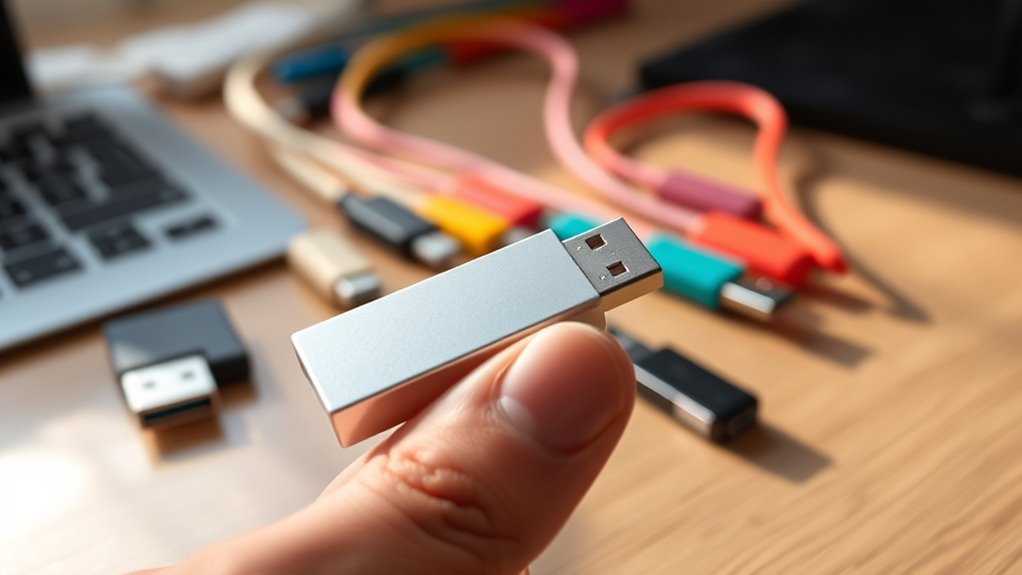
Selecting the right USB specification can substantially impact your device’s performance and compatibility. When choosing a USB standard, you need to consider how you’ll use your devices and what features matter most. For instance, if speed is a priority, USB 3.2 or USB4 offers markedly faster data transfer rates compared to older versions like USB 2.0. Faster speeds benefit large file transfers, high-resolution video streaming, and quick device backups. However, if your devices only support older standards, opting for a newer USB spec might not deliver the expected performance, making backward compatibility a vital factor. Luckily, most modern USB ports are designed with backward compatibility in mind, so newer cables and devices often work with older ports, albeit at reduced speeds. This guarantees you don’t have to replace everything at once and can upgrade gradually. Additionally, many users consider ease of use and setup when selecting their USB standards to ensure seamless connectivity.
Another key aspect to consider is the rise of wireless alternatives. While USB cables are still widely used, wireless options like Bluetooth and Wi-Fi have gained popularity for their convenience. For example, wireless peripherals such as keyboards, mice, and external drives eliminate cable clutter and provide more flexibility. But, these wireless solutions often come with trade-offs, including potential latency or reduced data transfer speeds, especially when compared to high-speed USB standards. When selecting a USB specification, think about whether a wired connection is necessary for your use case or if wireless alternatives can meet your needs. For tasks requiring high throughput or minimal latency—such as gaming or professional video editing—sticking with a reliable wired USB connection is usually better. On the other hand, for casual data transfers or peripheral connectivity, wireless options might suffice.
It’s also worth noting that newer USB standards often incorporate features like improved power delivery, which can charge devices faster or power larger peripherals. If you frequently connect power-hungry devices, choosing a USB spec that supports higher wattage can be advantageous. Additionally, some standards introduce innovative connectors and protocols to streamline connections and reduce clutter. When selecting your USB specification, consider your device ecosystem and future-proofing. Investing in a higher version may seem more expensive initially but can save you money and hassle down the line by supporting newer peripherals and technologies.

NETGEAR Nighthawk WiFi 7 Router (BE9300) – Router Only, 9.3Gbps Wireless Speed, 2.5 Gigabit Internet Port, Tri-Band for Gaming, Covers 2,500 sq. ft., 100 Devices, VPN – Free Expert Help
Blazing-fast WiFi 7 speeds up to 9.3Gbps for gaming, smooth streaming, video conferencing and entertainment
As an affiliate, we earn on qualifying purchases.
Frequently Asked Questions
Can I Use a USB 3.0 Device With a USB 2.0 Port?
Yes, you can use a USB 3.0 device with a USB 2.0 port. USB compatibility allows the device to function, but at USB 2.0 speeds. Your device identification will show it as a USB 2.0 device, and it won’t take advantage of USB 3.0’s faster transfer rates. Make sure your cable and port are compatible, and you’ll be able to connect without issues, even if speeds are limited.
Are All USB Cables Compatible Across Different Specifications?
Imagine a world where your USB cable connects seamlessly, like a key fitting perfectly into a lock. Not all USB cables are compatible across different specifications, due to cable compatibility and specification differences. Some cables designed for USB 3.0 won’t work properly with USB 2.0 ports, and vice versa. Always check the cable’s specifications to verify it matches your device’s port, preventing frustration and guaranteeing peak performance.
How Do I Identify the USB Specification Version on My Device?
You can identify your device’s USB specification version by checking the port identification or inspecting the device manual. Look closely at the USB port; different versions have distinct shapes or symbols, like a lightning bolt for USB 3.0. You can also connect your device to a computer and view the device details in system settings. Knowing your port identification helps make certain of device compatibility with the right USB specification.
Is Faster USB Always Better for My Needs?
Faster USB isn’t always better if it costs too much or isn’t compatible with your devices. You might think speed is everything, but if your device only supports USB 2.0, upgrading won’t improve performance. Consider your specific needs and budget, balancing speed vs. cost and ensuring device compatibility. Sometimes, a slower, more affordable USB version works just fine for everyday tasks, making it a smarter choice overall.
Will Upgrading My USB Port Improve Data Transfer Speeds Immediately?
Upgrading your USB port can improve data transfer speeds if the new port offers better USB compatibility, like moving from USB 2.0 to USB 3.1 or newer. However, the speed boost isn’t instant—you need compatible devices and cables that support the higher specifications. Confirm your device and peripherals also support the upgraded port to maximize performance. A port upgrade can make a noticeable difference when all components are compatible.

ASUS ExpertWiFi EBG15 Gigabit VPN Wired Router, up to 3 WAN ethernet Ports + 1 USB WAN, IPS Intrusion Prevention, Layer 7 Firewall, Commercial-Grade Network Security, Remote Management with App
Easier-Than-Ever Setup — Convenient and easy router management via web browser or the ASUS ExpertWiFi mobile app through...
As an affiliate, we earn on qualifying purchases.
Conclusion
Choosing the right USB standard boosts your device performance and future-proofing. Did you know that USB 3.2 and USB4 can transfer data at up to 40 Gbps? That’s enough for 4K video editing and large backups in seconds. By evaluating your speed, power, and compatibility needs, you can select the best USB version for your setup. Making an informed choice ensures seamless performance today and keeps you ready for tomorrow’s tech demands.

TP-Link ER605 V2 Wired Gigabit VPN Router, Up to 3 WAN Ethernet Ports + 1 USB WAN, SPI Firewall SMB Router, Omada SDN Integrated, Load Balance, Lightning Protection
【Five Gigabit Ports】1 Gigabit WAN Port plus 2 Gigabit WAN/LAN Ports plus 2 Gigabit LAN Port. Up to...
As an affiliate, we earn on qualifying purchases.

Cudy New Gigabit Multi-WAN VPN Router, Up to 4 Gigabit WAN Ports, SMB, Load Balance, Lightning Protection, PPTP L2TP WireGuard OpenVPN IPsec VPN Router
Gigabit Multi WAN Router: 1 Gigabit WAN Port + 3 Gigabit WAN/LAN Ports +1 Gigabit LAN Port. Support...
As an affiliate, we earn on qualifying purchases.